
This article explains the key features of the Project Dashboard in BuilderPal and how to use them for effective project oversight.
Summary
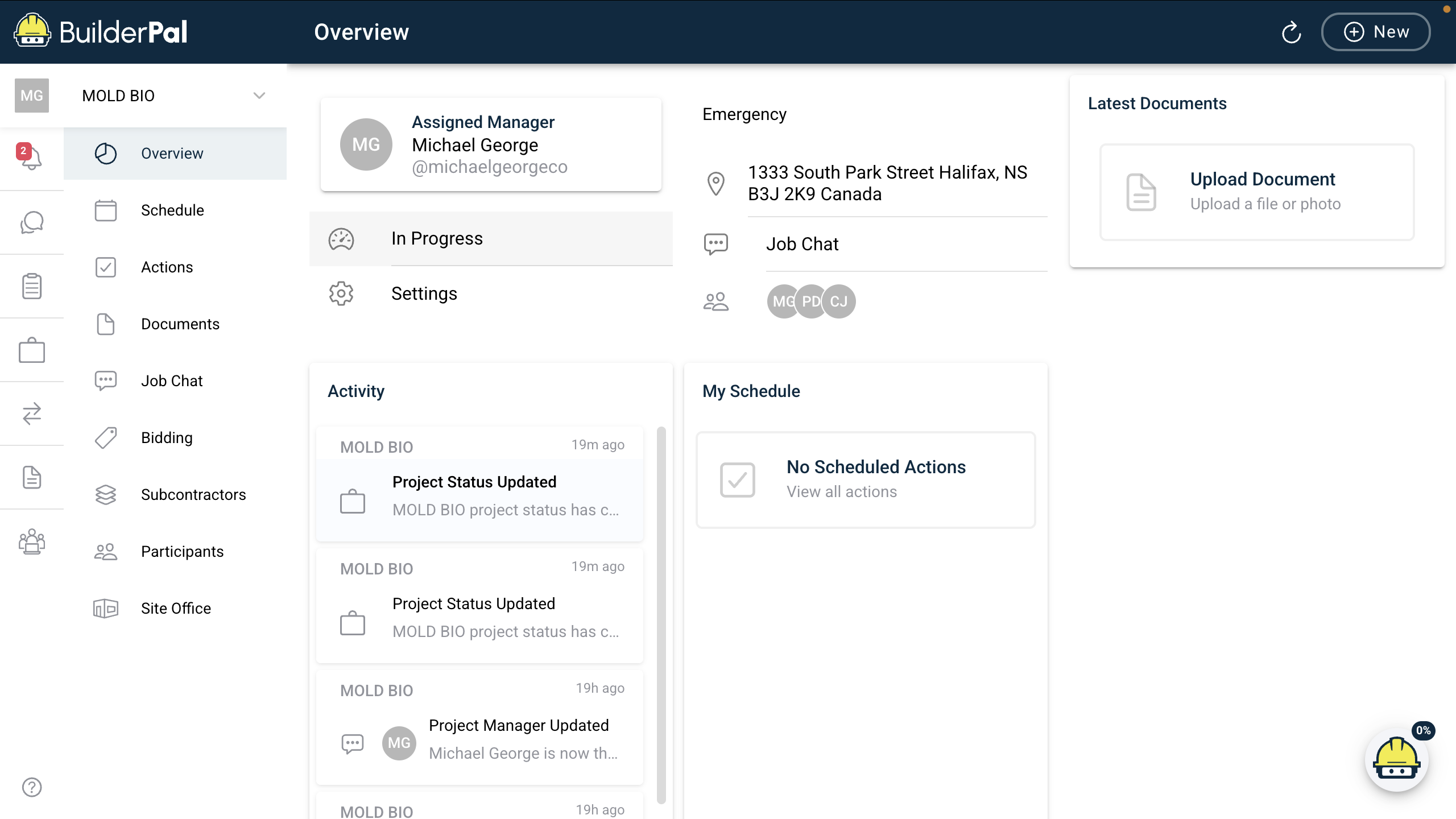
The Project Dashboard groups navigation, monitoring, and management tools in one place, helping teams stay informed and take action quickly.
Prerequisites
Role or permission needed: Any team member with access to the project (e.g., Admin GC, Team Project Manager, Team Member)
Setup required: Log in to your BuilderPal account and select an active project
Steps
Access the Project Dashboard
Log in to BuilderPal via web or mobile.
Select a project from the Projects menu or search for it.

View the Overview Section
Review the top section of the dashboard for project summary details such as:
Status
Timeline
Budget overview
Alerts or notifications
Navigate Key Features
Use the sidebar or tabs to access core sections, including:
Tasks
Documents
Team
Bids
Timesheets
RFIs / Submittals
Click any section to drill into detailed views.

Manage Tasks and Schedule Actions
Open the Tasks section to:
View open items
Assign responsibilities
Add new tasks
Use filters to sort by priority or due date.

Tips
Pro tip: Customize your dashboard view using filters in the Overview and Tasks sections to focus on what matters most to your role.
Time saver: Bookmark the dashboard URL for quick access, or use the BuilderPal mobile app for on-the-go monitoring.