
Summary
This tutorial explains how to edit projects offline using BuilderPal's local cache and sync changes when back online. It's useful for job sites with poor internet.
Prerequisites
● Role or permission needed: Any team member
● Any setup required: Have the BuilderPal app installed and logged in
Steps
Open the Project Normally While Online
○ Launch BuilderPal. Open the project / estimate / notes you want. This loads the project data into the phone’s local cache. Once it’s loaded, you can usually keep editing offline.

Go Offline and Edit Normally
*Typical things that still work offline:
Edit notes, Change task lists, Update measurements, Modify line items / materials, Add photos (stored to your device first).
These edits are saved locally on the device.
Reconnect to Sync
When your device gets internet again: BuilderPal will auto-sync the changes. Or you may need to tap Sync / Refresh. The app pushes: updated estimates. new photos. edited notes. to the cloud version.
Know What Doesn't Work Offline
○ Instruction: Things that usually won’t work offline: Creating new projects. Sending client estimates. Pulling price databases. Inviting collaborators. AI / automated features.
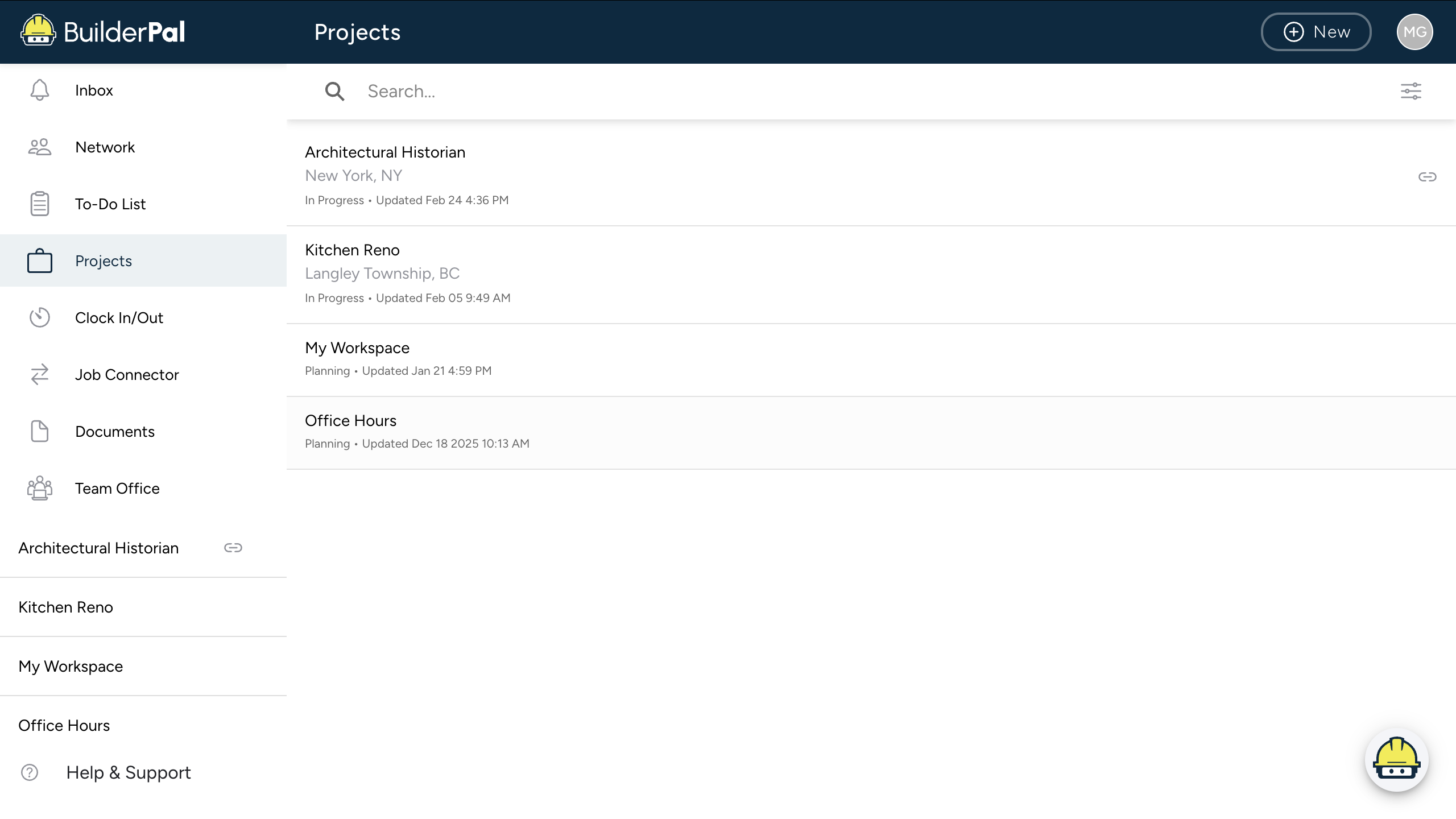
○ Screenshot: Only if not obvious.
Confirmation
“You’ll know it worked when your offline changes sync and appear in the cloud version upon reconnection.”
Tips
● Pro tip or best practice: Before leaving service: Open BuilderPal. Open the specific project you’ll be working on. Scroll through sections so everything loads. Then go offline. This ensures the full project cache downloads.
● Shortcut or time saver: Always check sync status after reconnecting to confirm all edits uploaded.