
Summary
BuilderPal works on both mobile and web, and both versions contain the same features, projects, and data. The difference is how you navigate. Mobile is optimized for fast, field-ready workflows; desktop is optimized for office work, reviewing information, and setup tasks.
Why It Matters
Problem it solves: Contractors often switch between jobsite tools and office tools. Without understanding the differences, it can feel like one version is “missing” something or harder to use.
Benefit to contractors: BuilderPal’s design keeps field work extremely fast and office work highly organized—so teams can move between devices without losing context.
How It Works
Core Navigation Differences
Both platforms access the same information, but the layout is tailored to the user’s environment.
Mobile App (Field-Optimized)
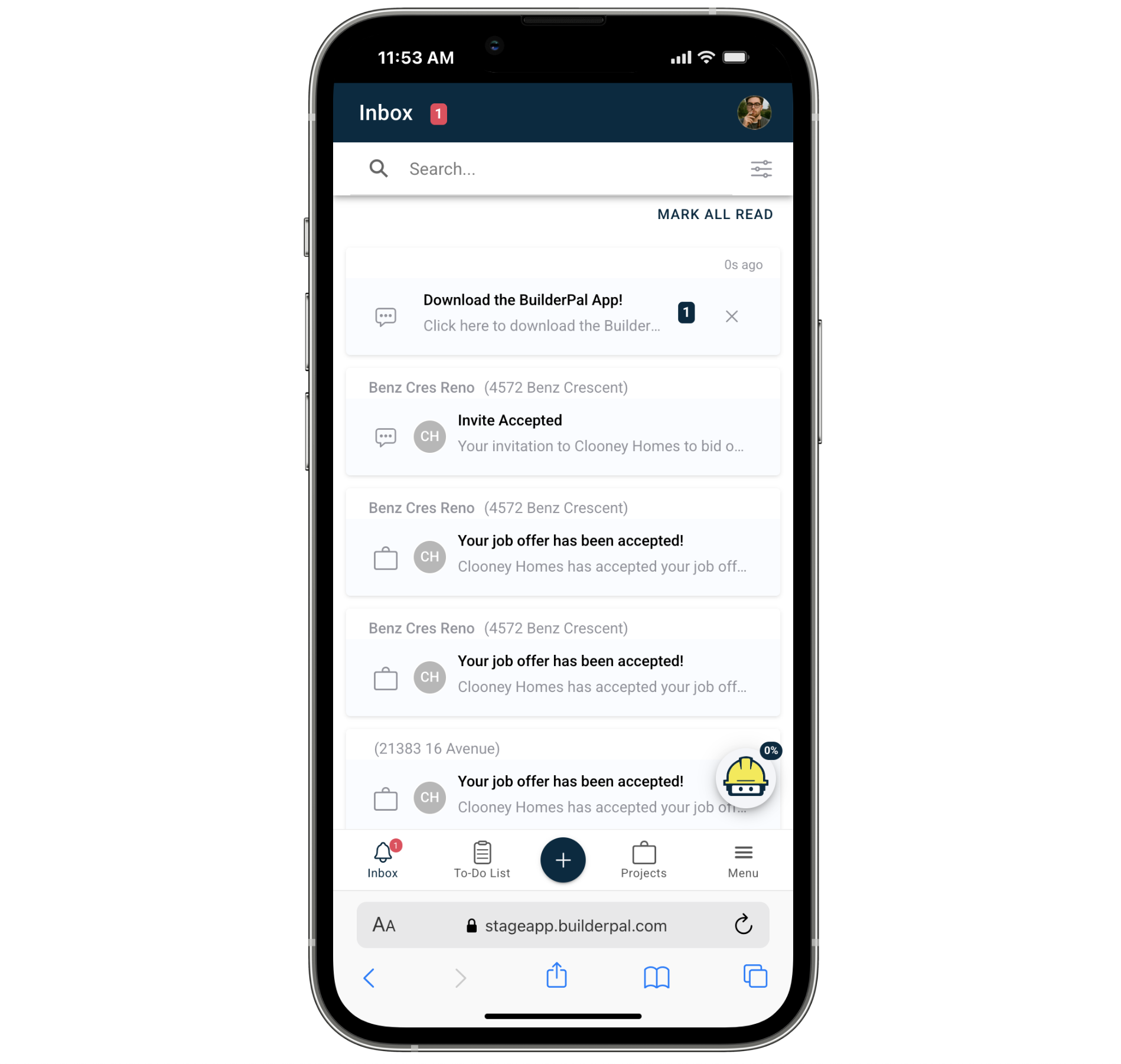
Home screen opens to the Inbox
Bottom navigation bar: Inbox, To-Do List, + (Quick Actions), Projects, Menu
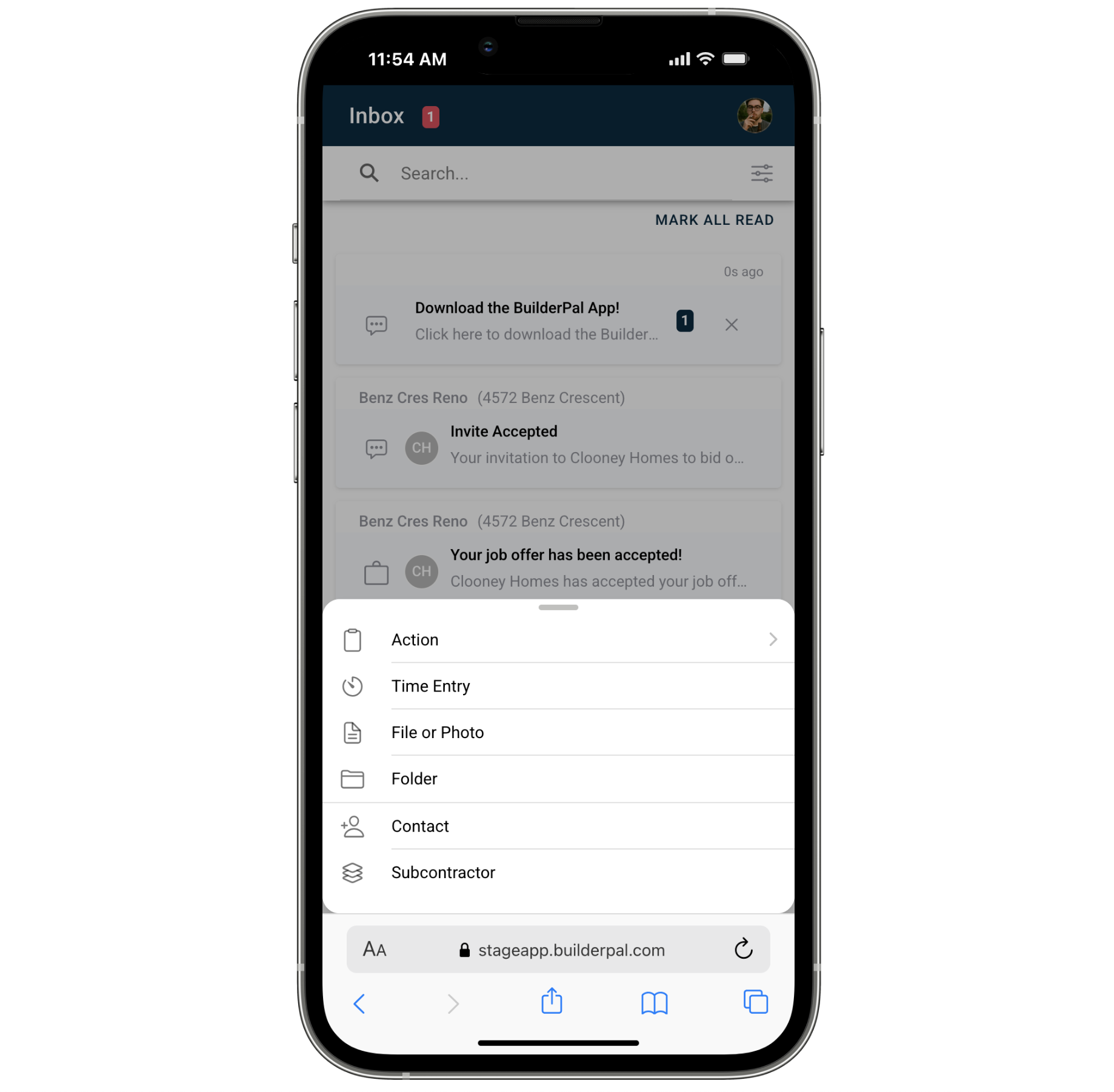
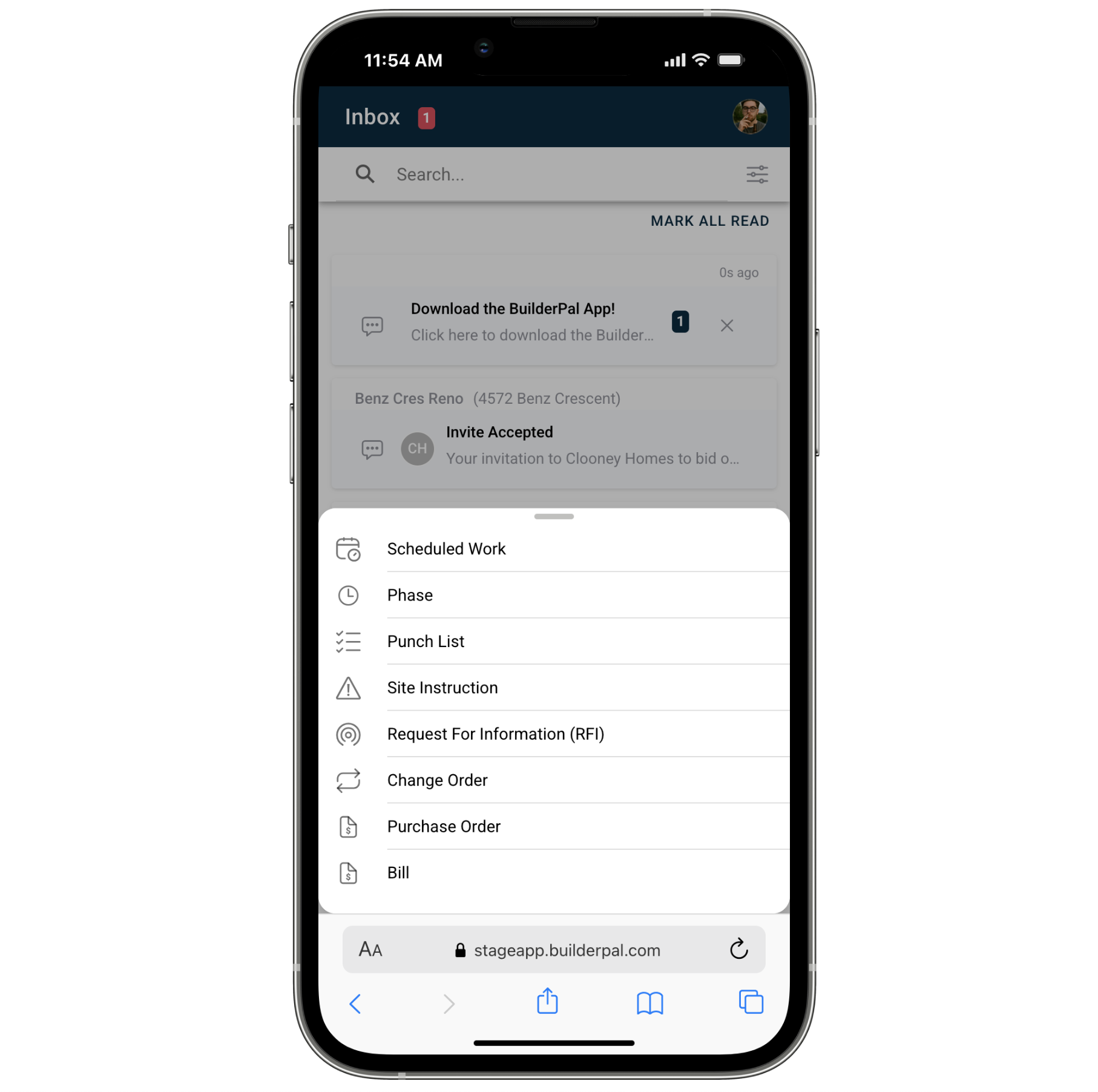
Quick Actions panel provides one-tap access to:
Clock In/Out
Job Connector
Team Office
Support
Project tools (Overview, Schedule, Actions, Documents, Job Chat, Bidding, Subcontractors, Participants, Site Office)
Best for:
Fast jobsite navigation
Uploading photos
Responding to updates
Clocking in/out
Walking the job while accessing project tools
Web App (Office-Optimized)
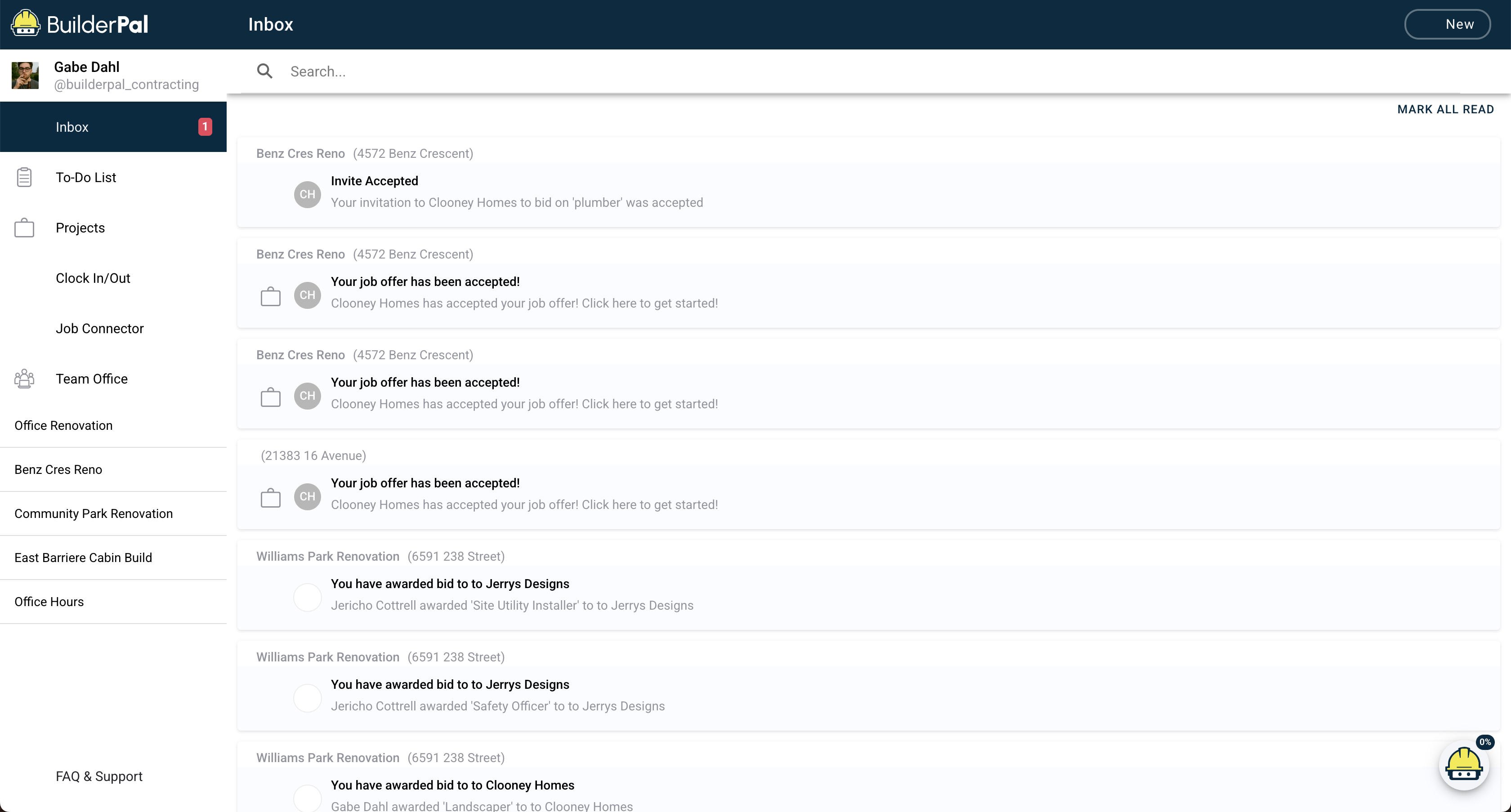
Uses a left-hand sidebar for navigation
Wider screen makes admin tasks, project setup, long lists, and reviews easier
Ideal for GC admins, PMs, coordinators, and office teams
Best for:
Reviewing schedules, documents, and long lists
Detailed project setup
Bid management
Timesheet approvals
Team and company-level settings
Real-World Example
On the jobsite: A supervisor clocks in, checks updates in the Inbox, opens the Quick Actions menu, and uploads photos to Documents—all from their phone.
In the office: A PM reviews yesterday’s activity, updates the schedule, edits subcontractor details, and reviews bid packages—all from the desktop sidebar.
When to Use Each
Use Mobile When…
You’re physically on-site
You need fast access to project tools
You’re completing Actions or capturing jobsite conditions
You’re clocking in or switching cost codes
You’re responding to real-time updates
Use Web When…
You’re setting up new projects or trades
You’re reviewing or managing large sets of data
You’re approving timesheets
You’re updating documents or cost codes
You’re doing managerial or administrative work
Next Steps
Learn how to navigate the mobile app
Learn how to navigate the desktop sidebar
Try switching between devices to see how everything stays synced